ChatGPT
YouTube ... Quora ...Google search ...Google News ...Bing News
- Conversational AI ... ChatGPT | OpenAI ... Gemini | Google ... Claude | Anthropic ... Bing | Microsoft ... Siri | Apple ... Meta AI/Manus | Meta ... Perplexity ... Grok | SpaceXSI ... Ernie | Baidu ... DeepSeek ... Qwen | Alibaba
- Artificial Intelligence (AI) ... Generative AI ... Machine Learning (ML) ... Deep Learning ... Neural Network ... Reinforcement ... Learning Techniques
- Try ChatGPT here in your browser ... Note: ChatGPT is available via web browser, and dedicated desktop applications for macOS and Windows.
- ChatGPT | OpenAI
- Manage Your Data in ChatGPT
- writeGPT | OpenAI ... web extension to facilitate prompt writing ... Chrome Extensions
- ChatGPT is everywhere. Here’s where it came from | Will Douglas Heaven - MIT Technology Review
- Large Language Model (LLM) ... Multimodal ... Foundation Models (FM) ... Generative Pre-trained ... Transformer ... Attention ... GAN ... BERT
- Prompt Engineering (PE) ...PromptBase ... Prompt Injection Attack
- Embedding ... Fine-tuning ... RAG ... Clustering ... Recommendation ... Anomaly Detection ... Classification ... Dimensional Reduction. ...find outliers
- Analytics ... Visualization ... Graphical Tools ... Diagrams & Business Analysis ... Requirements ... Loop ... Bayes ... Network Pattern
- Development ... Notebooks ... AI Pair Programming ... Codeless ... Hugging Face ... AIOps/MLOps ... AIaaS/MLaaS
- Artificial Intelligence (AI) ... Generative AI ... Machine Learning (ML) ... Deep Learning ... Neural Network ... Reinforcement ... Learning Techniques
- phind ... The AI search engine for developers
- Agents/Assistants ... Agent Catalog ... Personal Companions ... Negotiation ... Productivity ... Email ... Web Automation ... Robotic Process Automation (RPA) ... LangChain
- Gaming ... Game-Based Learning (GBL) ... Security ... Generative AI ... Games - Metaverse ... Quantum ... Game Theory ... Design
- Python ... GenAI w/ Python ... JavaScript ... GenAI w/ JavaScript ... TensorFlow ... PyTorch
- Spreadsheets ... Documents ... Slides ... Database; Vector & Relational ... Graph ... Wiki
- Artificial General Intelligence (AGI) to Singularity ... Curiosity ... Emergence ... Moonshots ... Explainable AI ... Automated Learning
- In-Context Learning (ICL) ... LLMs understand to encode learning algorithms implicitly during their training processes ... Context
- Memory
- Cybersecurity ... OSINT ... Frameworks ... References ... Offense ... NIST ... DHS ... Screening ... Law Enforcement ... Government ... Defense ... Lifecycle Integration ... Products ... Evaluating
- InstructGPT: Ouyang et al., 2022
- PaLM: Chowdhery et al., 2022 ... PaLM
- Efficient reductions for imitation learning: Ross & Bagnell, 2010 ... Imitation Learning (IL)
- Deep reinforcement learning from human preferences: Christiano et al., 2017
- Learning to summarize from human feedback: Stiennon et al., 2020
- Scaling laws for reward model overoptimization: Gao et al., 2022
- Proximal policy optimization algorithms: Schulman et al., 2017
- The Crown Jewel Behind ChatGPT: Reinforcement Learning (RL) from Human Feedback (RLHF) | Jesus Rodriguez - Medium
- OpenAI invites everyone to test ChatGPT, a new AI-powered chatbot—with amusing results | Benj Edwards - ARS Technica ... ChatGPT aims to produce accurate and harmless talk—but it's a work in progress.
- Examples ... How to earn money
- ChatGPT Update: Improved Math Capabilities | Matt Southern - SearchEngine Journal
- ChatGPT Owner Launches Yet Another Impressive App | Usman Kashmirwala - BrandSynario ... Google Play: Merlin AI | Dog Town Media
- Stealth AI ... Unleash the power of undetectable AI writing
- 12 Best AI Plagiarism Checkers to Detect ChatGPT-Generated Content | Upanishad Sharma - Beebom
- The inside story of how ChatGPT was built from the people who made it | Will Douglas Heaven - MIT Technology Review
- ChatGPT Browser Extensions | Google Search ... ... Bing Search
- Ghost debuts an anonymous group messaging app with ChatGPT baked in | Sarah Perez - TechCrunch ... ability to ask ChatGPT a question directly within the group chat, among other things.]
- ChatGPT Passed an MBA Exam. What’s Next? | Angie Basiouny - Knowledge at Wharton ...ChatGPT | OpenAI
- ChatGPT is combining its different abilities into a single ‘Voltron-style’ chat | Carl Franzen - VentureBeat
- Introducing GPT-4o
- GPT-4o first reactions: ‘essentially AGI’ | Carl Franzen - VentureBeat
- 7 things ChatGPT can do you should try today | Ryan Morrison - Tom's Guide
- offering text, image, code and even voice features that can help you do anything from writing a better letter to creating a website from scratch with both code and design.
- for example, you can share photos of furniture you want to buy and have ChatGPT create a color scheme for your walls that matches the aesthetic.
- ChatGPT premium you can use DALL-E to generate images and in both the free and paid versions you can upload pictures or documents for deeper analysis.
- generate a graph or chart using built-in data analysis features It can create bar charts, line graphs, pie charts and more and can add extra style if you ask it during a follow-up message.
- if you’ve got a PDF of a report you can load it into ChatGPT and ask it to pull out key data points and turn it into an interesting visual.
- help with math problems
- analyze videos
- upload a photo of your fridge or a pile of ingredients on a counter and ask ChatGPT to make you a recipe that uses all or some of those items.
- Introducing OpenAI o3 | OpenAI Team - OpenAI ... Official announcement and technical report on the latest reasoning model capabilities.
Generates human-like text, based on a family of “large language models (LLM)” — algorithms that can recognize, predict, and generate text based on patterns they identify in datasets containing hundreds of millions of words; ChatGPT performs a wide range of natural language processing (NLP) tasks; chatbots, automated writing, language translation, text summarization and generate computer programs. OpenAI states ChatGPT is a significant iterative step in the direction of providing a safe AI model for everyone. ChatGPT interacts in a conversational way. The dialogue format makes it possible for ChatGPT to answer follow-up questions, admit its mistakes, challenge incorrect premises, and reject inappropriate requests. ChatGPT is a sibling model to InstructGPT, which is trained to follow an instruction in a prompt and provide a detailed response.
ChatGPT will not take your jobs—someone who knows how to use it will. - Jaspreet Bindra
What is ChatGPT?
|
|
|
|
|
|
2024-2025 Milestones
The 2024-2025 period marked a significant shift in ChatGPT's architecture and user interface:
- Transition to Reasoning Models: OpenAI introduced the o1 series and subsequent o3 models, which are specifically trained to "think" before they speak using chain-of-thought reasoning. These models excel at complex tasks in science, coding, and mathematics by breaking down problems into logical steps, distinguishing them from standard chat models that prioritize immediate response generation.
- Canvas Interface: OpenAI launched Canvas, a dedicated workspace for collaborative writing and coding projects. Unlike the standard chat interface, Canvas allows users to edit documents and code snippets directly in a side-by-side window, enabling more precise control, iterative refinement, and context-aware collaboration.
- Advanced Multimodal Integration: The integration of GPT-4o unified text, audio, and vision, allowing for real-time, low-latency interactions that feel more natural and responsive.
Multimodal Capabilities
ChatGPT has evolved from a text-only interface to a fully multimodal system, supporting end-to-end speech, real-time vision processing, and advanced image generation.
- Vision: Users can upload images, screenshots, or documents. ChatGPT uses vision models to analyze, describe, and solve problems based on visual input, now with enhanced accuracy in the desktop and mobile applications.
- Voice Mode: Recent updates, particularly with GPT-4o, introduced real-time, low-latency voice interaction. The system can detect emotional cues, adjust its tone, and handle interruptions, providing a fluid conversational experience.
- Real-time Interaction: The model's ability to process audio and visual data in real-time allows for use cases like live language translation, visual assistance for the visually impaired, and interactive tutoring.
Agents
YouTube ... Quora ...Google search ...Google News ...Bing News
- Agents/Assistants ... OpenAI dots ... Ready-to-Use AI Agent Comparison ... AI Coding Agent Comparison ... Agent Development Framework Comparison ... Visual and Low-Code Agent Builder Comparison ... ...build an agent ... ...build an agent
- Try ChatGPT Work (select Work in the ChatGPT desktop app, or at the top of a new chat on the web) ... dots (eligible Pro, Business Premium, and Enterprise accounts)
- Get started with Work | OpenAI ... Getting started with dots | OpenAI
An AI agent is software that pursues a goal by planning steps, using tools, and acting on a person's behalf, rather than answering one question at a time. Unlike traditional robotic process automation, which follows fixed scripts, an agent built on a large language model decides what to do next based on what it finds, so it can open a browser, run code, read files and connected apps, produce finished deliverables, and keep working while the user is away. OpenAI spent 2025 and 2026 turning ChatGPT from a conversation partner into a place where work gets delegated, and its desktop app now offers three modes: Chat for answers and drafts, Work for multi-step projects that end in a reviewable file, and Codex for software engineering. A fourth product, dots, sits above all three as an always-on agent that can hand tasks to Work or Codex and follow up on them over days or weeks.
The two consumer-facing agents covered below solve different problems. ChatGPT Work, launched on July 9, 2026, is a delegate for a defined task: you describe an outcome, it gathers context, breaks the job into steps, and returns finished sheets, slides, documents, or web apps. Dots, announced at OpenAI DevDay on September 29, 2026, are persistent agents with their own cloud computer and browser that take ongoing responsibility for an area of work and check in only when a decision needs a human. Both rely on the same plugin connections, approval checks, and GPT-5.6 and GPT-6 family models, so what a beginner learns about briefing one carries over to the other.
OpenAI's Agent Efforts
OpenAI's agent work has advanced along three tracks that steadily converged. The first track put agents inside ChatGPT for everyday knowledge work, starting with the browser-driving Operator and the deep research tool, then merging them into ChatGPT agent and later into ChatGPT Work and dots. The second track built coding agents under the Codex name, which began as a command-line tool and a cloud service and eventually became one of the three modes of the ChatGPT desktop app. The third track gave developers and enterprises the building blocks for their own agents, from the Responses API and Agents SDK to AgentKit, the Frontier enterprise platform, and a hosted Agents API. The table below lists the major milestones.
| Date | Release | What it added |
|---|---|---|
| Jan. 23, 2025 | Operator | A research-preview agent that used its own web browser to fill out forms, place orders, and complete other repetitive web tasks |
| Feb. 2, 2025 | Deep research | Multi-step web research that reads many sources and returns a cited report |
| Mar. 11, 2025 | Responses API and Agents SDK | Developer building blocks for tool use, web and file search, computer use, and multi-agent orchestration |
| Apr. 16 and May 16, 2025 | Codex CLI and Codex cloud | An open-source terminal coding agent, followed by a cloud agent that writes features, fixes bugs, and proposes changes for review |
| July 17, 2025 | ChatGPT agent | One "agent mode" that combined Operator's browser actions with deep research, a terminal, and connectors to apps |
| Oct. 6, 2025 | AgentKit and Apps SDK (DevDay 2025) | Agent Builder (a visual canvas for multi-agent workflows), ChatKit, a Connector Registry, evals, guardrails, and third-party apps that run inside ChatGPT |
| Oct. 21, 2025 | ChatGPT Atlas | A web browser with ChatGPT and agent mode built in |
| Feb. 5, 2026 | Frontier | An enterprise platform to build, deploy, govern, and evaluate "AI coworkers," including agents from other vendors |
| July 9, 2026 | ChatGPT Work and GPT-5.6 | The successor to ChatGPT agent, plus Scheduled Tasks, Sites, and one desktop app combining Chat, Work, and Codex; OpenAI also announced that Atlas would be retired |
| Sept. 2026 | GPT-6 family and Agents API | GPT-6 Astra (Sept. 3), GPT-6 Sol and GPT-6 Luna (Sept. 22), and a public beta of a hosted Agents API built on the same harness as Codex |
| Sept. 29, 2026 | DevDay 2026 | Dots, ChatGPT Space, GPT-6.1 Sol, computer use and multi-agent support in the Agents API, and a preview of the Decisions API |
Several lessons from this history shape how today's products behave. Operator and ChatGPT agent showed that a model controlling a browser could finish real errands, but they also exposed the risk that a malicious web page could hijack an agent through a prompt injection attack, which is why OpenAI required confirmation before consequential actions and later added automated "auto-review" of risky steps. OpenAI trained ChatGPT agent with reinforcement learning to choose the right tool for each step, an approach that carries into Work and dots. The merger of Codex into the ChatGPT desktop app in July 2026 reflected another lesson: more than 1 million of Codex's roughly 5 million weekly users were already using it for work that had nothing to do with software, so OpenAI put the same agent harness behind a friendlier, non-technical front door.
Recent Developments
The pace accelerated in the fall of 2026. GPT-6 Astra arrived on September 3 as OpenAI's flagship model for computer use, software engineering, and long-horizon agent work, followed by the cheaper GPT-6 Sol and GPT-6 Luna on September 22 and an upgraded GPT-6.1 Sol at DevDay a week later. At DevDay, OpenAI also expanded its hosted Agents API with computer use, multi-agent orchestration, tool search, and context compaction, previewed a Decisions API that limits a model to a finite set of predefined answers for classification and routing, and made the same agent features available inside AWS through Amazon Bedrock Managed Agents. The company introduced ChatGPT Space as well, a shared project area where teammates, ChatGPT, and a dot work from the same knowledge, including Pages (documents that people and agents write together) and collaborative slides.
Smaller updates have filled in gaps for both agents. ChatGPT Work gained the ability to complete tasks on some websites that require signing in (August 2026), event-triggered Scheduled Tasks that respond to changes in Slack, Gmail, and GitHub, a Data plugin for building dashboards from connected business data, and, beginning October 26, 2026, the GPT-6.1 Terra model in Work and Codex. Dots gained texting over iMessage or RCS on October 28, 2026, with the texting channel sharing the same memory and plugins as the dot in the ChatGPT app. Because these products change almost weekly, treat the plan and model details in this section as a snapshot from late October 2026 and confirm them against OpenAI's release notes.
ChatGPT Work vs. Dots: Key Differences
The simplest way to tell the two apart is to ask whether the work has a finish line. OpenAI's documentation recommends ChatGPT Work for delegating a task, such as research, analysis, or creating a file, either now or on a schedule, and recommends dots for tracking an ongoing responsibility, deciding next steps as circumstances change, and following up between conversations. A Work task is like handing a well-defined assignment to a skilled contractor: you brief it, it works for minutes or hours, and it hands back a deliverable for review. A dot is closer to the "chief of staff" that Sam Altman described at DevDay, a standing assistant that learns your preferences, watches the sources you connect, and decides when something deserves your attention. The two are complementary rather than competing, since a dot can delegate pieces of its responsibility to Work or Codex and track the results.
| Feature | ChatGPT Work | Dots |
|---|---|---|
| Core idea | Delegate a task with a clear, reviewable outcome | Hand off an ongoing responsibility that continues between conversations |
| Launched | July 9, 2026 (successor to ChatGPT agent) | September 29, 2026 (DevDay 2026) |
| Model | Selectable; launched on GPT-5.6 and now offers GPT-6 Astra, GPT-6.1 Sol, and Luna, with GPT-6.1 Terra rolling out | GPT-6 Astra |
| Where it runs | On your computer through the desktop app (approved local files, apps, and browser) or in an OpenAI cloud container | Its own cloud computer and browser, which keep working when your computer is off; optional access to one connected personal computer |
| How work starts | You start each job, or create a Scheduled Task that runs once, on a schedule, on an event, or to monitor for changes | You assign responsibilities; it also researches connected apps proactively (read-only) and suggests next steps |
| Where you talk to it | ChatGPT desktop app, web, and mobile | ChatGPT (text or voice, on desktop, web, and mobile), Slack, Microsoft Teams, and text messages |
| Typical output | Finished spreadsheets, slide decks, documents, reports, and Sites (shareable web apps) | Briefings, drafts, updated documents, follow-ups, and tasks it delegates to Work, Codex, or subagents |
| Memory | Uses the files, plugins, and project context you give the task | Starts from your ChatGPT memory and keeps its own notes on preferences, decisions, and ongoing work |
| Controls | Choose what it can access, follow progress, and approve important actions; auto-review checks risky actions | Built-in approval rules, optional Custom Rules, auto-review, safety monitoring, Activity and Scheduled views, pause, and delete |
| Who can use it | Desktop app: every plan, including Free; web and mobile: paid plans other than Free and Go | Pro (ages 18+, outside the EEA, UK, and Switzerland), Business Premium, and Enterprise, Edu, or Healthcare workspaces when an admin enables it |
| Usage | Metered like Codex; longer and more complex tasks consume more of a plan's allowance or workspace credits | Conversations with a dot don't count toward ChatGPT limits; deeper background work draws on a plan allowance; tasks it delegates count toward Work or Codex limits |
A practical rule of thumb for beginners follows from the table. If you can describe the finished file you want in a paragraph, start with ChatGPT Work, which is available to more people (including free users of the desktop app) and gives you a concrete artifact to judge. If what you want is "keep an eye on this and tell me when it matters," and you have an eligible plan, a dot is the better fit, provided you are comfortable granting a persistent agent access to your calendar, inbox, or chat channels. Many people will end up using both: Work for projects and deliverables, and a dot as the coordinator that remembers context, schedules follow-ups, and hands well-scoped tasks to Work.
ChatGPT Work
ChatGPT Work is OpenAI's agent for longer, multi-step knowledge work inside ChatGPT. OpenAI introduced it on July 9, 2026, as an agent that can act across a user's apps and files, stay with a project for hours, and turn a goal into finished spreadsheets, presentations, documents, and web apps. It replaced the earlier ChatGPT agent and runs on Codex technology, the agent harness OpenAI first built for software engineering, paired with a model chosen from the model selector. Work breaks a goal into smaller steps, completes them independently, and carries context from one step to the next, so a single request can move from customer research to a campaign brief to market-specific marketing assets without the user restating the background each time. OpenAI says Work cut its own month-end close and forecasting from days to hours, and Zapier reported using it to review thousands of leads and build an executive dashboard that surfaced seven figures in potential sales.
Work gathers context through plugins, which connect ChatGPT to services such as Slack, Microsoft Teams, Google Drive, SharePoint, email, calendars, CRM systems, project trackers, and internal tools. ChatGPT picks relevant plugins automatically, or you can point it at one by typing "@" followed by the plugin's name, and plugin permissions are shared across Chat, Work, Codex, and dots. In the desktop app, Work can also use local files and applications, a built-in browser for research, and a background computer-use capability that clicks, types, and moves files on the user's behalf. On web and mobile, Work runs in an OpenAI cloud container, and since August 2026 its browser can complete tasks on some websites that require signing in, so a user can hand off a task and step away. With Canvas retired from ChatGPT in 2026, Work has also become the main place for long-form document and analysis work.
Two companion features extend what Work can do. Scheduled Tasks let ChatGPT run an action once, repeat it on a schedule, react when an event occurs, or monitor something for changes, such as reviewing a Slack channel each week to refresh a meeting agenda or updating a deck when feedback arrives by email; free accounts can keep up to three active scheduled tasks that run at most once a day, while paid plans such as Plus and Pro get more and can trigger tasks from changes in Slack, Gmail, and GitHub. Sites, in public beta, turns work into an interactive website or lightweight app, such as a live dashboard, project tracker, or prototype, that can be shared with a team or publicly by URL and updated as the underlying information changes. Sites is not available on the Free or Go plans, and public publishing initially excluded the EEA, Switzerland, and the United Kingdom.
Usage works differently from ordinary chat. Work is metered like Codex: longer and more complex tasks, more capable models, faster speed settings, and heavy tool use all consume more of a plan's included usage, and eligible business agreements draw on a pool of workspace credits that administrators can cap with defaults, group limits, individual overrides, and alerts. In the ChatGPT desktop app for Mac and Windows, Chat, Work, and Codex are available on every plan, including Free, while on the web and mobile apps Work is limited to paid plans other than Free and Go. Enterprise and Edu workspaces received a two-week preview period in which Work was off by default, and their administrators control which people, plugins, websites, and actions Work may use. For model choice, OpenAI suggests GPT-6 Astra for demanding work that needs careful reasoning or a polished final file, GPT-6.1 Sol for complex work at lower cost, and Luna for simpler jobs.
Work keeps the user in the loop by design. You decide what it may access, can watch its progress, answer its questions, change direction mid-task, and approve important actions, while an auto-review step uses advanced models to check consequential actions involving connected tools before they happen, aiming to stop unauthorized sharing of sensitive information. By default the agent asks before visiting a new website, and workspace administrators can restrict apps to read-only access or approved actions. The system still makes mistakes, so OpenAI's guidance is to ask for a draft first, have Work flag unsupported claims or items that need human review, and check the output before sharing it or using it for decisions. Practical limits also apply: a cloud task cannot reach files on a computer that has gone offline, a task cannot switch between local and cloud execution in the middle of a turn, and enterprise cloud browsing cannot use saved passwords or local browser sessions.
Getting Started with ChatGPT Work
A beginner can get a first useful result from Work in a single short session. OpenAI's advice is that good first tasks have a clear outcome, a few source materials, and an output you can review, so it pays to start with something you know well enough to judge. The steps below use the desktop app because it is available on every plan, but the web and mobile apps work the same way on paid plans.
- Install and sign in. Download the ChatGPT desktop app for Mac or Windows from openai.com/chatgpt/desktop and sign in. The older desktop app has been renamed ChatGPT Classic, so make sure you open the new one.
- Switch to Work. Select ChatGPT (not Codex) from the menu, then choose Work from the Chat and Work toggle. On the web or mobile, select Work at the top of a new chat. To reuse a project's files, open the project and choose Work there.
- Pick a model and check your allowance. Use the model selector; Luna or GPT-6.1 Sol is a sensible choice for a first task, and Free and Go users can use GPT-6 Luna in the desktop app. Eligible plans show remaining Work usage in the sidebar.
- Connect a plugin (optional). Select Customize, then Plugins, in the left navigation and connect one service you use, such as Google Drive or Gmail. You can skip this step for the working example below.
- Write a brief, not a question. State the outcome, the sources it may use, constraints, what "good" looks like, and when it must stop for your review. This is ordinary prompt engineering applied to delegation.
- Follow along and approve. Watch the progress view, answer clarifying questions, redirect it if it drifts, and approve any important actions.
- Review the file. Open the spreadsheet, deck, or document it produces, spot-check facts and numbers, and ask for revisions in the same conversation.
Working Example: A Laptop Purchase Comparison Spreadsheet
This example needs no plugins and no outside data, so it works on any plan that includes Work, including the free desktop app. It mirrors one of OpenAI's recommended first tasks, a comparison spreadsheet that scores options and recommends a choice, but it supplies sample data in the prompt so every reader gets a result that can be checked by hand. Copy the brief below into a new Work conversation.
Goal: Help me choose a laptop for our 5-person design team.

Sources: Use only the data below. Do not browse the web.

Options (price in USD, battery life in hours, weight in kg, RAM in GB, warranty in years):
Option A: 1899, 18, 1.6, 32, 3
Option B: 1499, 12, 1.9, 16, 1
Option C: 2199, 22, 1.4, 24, 2

Deliverable: an Excel workbook with three tabs.
1. "Data": the table above with clear column headers.
2. "Scoring": score each option from 1 to 5 on cost, battery, weight, RAM,
   and warranty. Put the weights (cost 30%, battery 20%, weight 15%,
   RAM 25%, warranty 10%) in their own cells and calculate weighted totals
   with formulas, so I can change a weight and see the ranking update.
3. "Summary": the ranked shortlist, the total cost of buying 5 laptops of
   each option, a one-paragraph recommendation, and a list of risks or
   missing information I should check before buying.

Constraints: State any assumption you make about how scores are assigned.
Stop and show me the draft workbook before doing anything else.
Work will typically plan its approach, build the workbook, and present it as a file you can open, often explaining the scoring method it chose. Check the result the way you would check a colleague's work. The total-cost figures are easy to verify by hand (Option A: $9,495; Option B: $7,495; Option C: $10,995), and changing the cost weight from 30% to 50% should visibly change the weighted totals if Work used formulas as asked. If a number is wrong or a score looks arbitrary, say so in the same conversation, for example "Explain how you scored battery life and switch to a linear scale," and Work will revise the file.
Once the first result looks right, follow-up requests show how Work chains deliverables while keeping context. Asking "Turn the Summary tab into a three-slide deck for my manager, using the numbers from the workbook" produces a presentation from the same analysis, and on a paid plan "Publish this comparison as a Site my team can view" turns it into a shareable page. After you connect plugins such as Slack and Google Drive, a Scheduled Task can keep the analysis current, as in the brief below.
Every Monday at 9:00 AM Eastern for the next four weeks, review new messages
in the #laptop-purchase Slack channel and new files in the "Laptop Purchase"
Google Drive folder. Update the workbook if prices or options change, and send
me a summary of what changed here in ChatGPT. Do not post in Slack or share
the file with anyone.
Getting Started: ChatGPT Desktop Voice, Computer Use, and a Persistent Chief of Staff
A practical chief-of-staff workflow combines conversation, delegated tasks, access to applications, and a record of decisions. Voice supplies the conversational interface; Work carries out defined assignments; Computer Use operates an application's visible interface; and dots can maintain ongoing responsibilities between conversations. Calling a chat a "chief of staff" defines its role, but does not by itself enable monitoring, connect accounts, or create a recurring task. Configure those capabilities explicitly and test them with a small assignment before relying on them for daily work.
Install, connect, and test
- Install the desktop app. Use the download options in OpenAI's desktop app guide, sign in, and check that your account offers Work and Voice. Availability varies by plan, platform, rollout, and workspace policy. Downloading the app does not mean the models run offline.
- Create a workspace for the trial. Make a folder named "Chief of Staff Demo" in Documents and start a Work chat with access to that folder. Put only the documents needed for the exercise there. Choose a descriptive chat name so you can return to it.
- Start a live conversation. Select the Voice control in a new chat before sending the first message. Allow microphone access and choose a voice when prompted. Where supported, an existing task offers "Start voice chat"; dictation instead converts speech to message text.
- Test understanding. Say, "Repeat my goal in one sentence and list the information you still need." Check the visible transcript for names, dates, and quantities. Correct mistakes before the agent uses them in a file or application.
- Enable Computer Use. In Work or Codex, open Plugins, install or enable Computer Use, and turn on its server and skill if those switches appear. Review application access under Settings > Computer use. On macOS, grant the requested Screen Recording and Accessibility permissions; on Windows, keep the target application visible on the active desktop.
- Connect the services needed for the exercise. Connect Gmail and Google Calendar if available to your account, and verify the selected accounts. Prefer their structured plugins for searches and calendar reads. Use Computer Use for the Notepad exercise or another task that actually requires the visible interface.
- Try one harmless action. Open a blank Notepad window and say, "Use Computer Use to enter the heading Chief of Staff Demo in this blank Notepad document. Save it in the demo folder as briefing.txt, then confirm the saved path." Check the file yourself before adding more applications.
On Windows, Computer Use occupies the foreground and can move the pointer and type into the active desktop. Do not try to work in the same Windows session while it is controlling an application; pause the task first or use another device. Local desktop work also depends on the computer remaining available, whereas a dot's cloud work can continue independently of that computer. These are different execution environments, so a cloud agent should not be assumed to have access to an open local Notepad window.
Give the assistant a concrete operating brief
The following is an example instruction, not a built-in product mode. Adapt the folder, time zone, sources, and approval boundaries to your own work. Keeping a short written brief makes the workflow easier to resume and gives you something concrete against which to judge the result.
Act as my chief of staff for this project.
Goal: maintain a reliable daily brief and an accurate list of open actions.
Sources: the Chief of Staff Demo folder, my connected Gmail account, and
my primary Google Calendar. Use America/New_York for dates and times.
Start with a one-time trial for today. Do not create recurring work yet.

You may read the named sources and create new files in the demo folder.
For this trial, do not send email, invite people, change calendar events,
delete files, purchase anything, or publish or share information.
Prepare drafts and proposals for my review.

Keep a status note containing the goal, decisions, completed work,
open actions, blockers, source links, and the next step.
Separate facts from suggestions. If information is unavailable, say so.
Before claiming completion, open each saved output and check it.
Report the output path and anything that remains incomplete.
Walkthrough: a morning brief across Notepad, Gmail, Calendar, and files
This exercise produces a local briefing and a status note without sending messages or changing anyone's schedule. Begin with the one-time trial above and keep the target Notepad window open. If Gmail or Calendar is unavailable, supply a small text export and ask the assistant to label the exercise as based on that export, rather than claiming it checked the live account.
- Define the time window aloud. Say, "Prepare my morning brief for today in America/New_York. First confirm today's date and which accounts you can actually access." Resolve any date or account mismatch before continuing.
- Read the calendar. Say, "Read today's events from my primary calendar. List start and end times, meeting titles, and preparation needs. Flag overlaps, and keep all-day events separate." Review the list against the calendar; an empty result and an inaccessible calendar must be reported differently.
- Read a bounded email set. Say, "Find messages received since 5 PM yesterday that need an answer or relate to today's meetings. Give me up to five important items with sender, subject, received time, source link, and a suggested next action. Do not send anything." Ask it to explain why each item needs attention and to distinguish an explicit deadline from an inferred priority.
- Read local priorities. Put a short file named priorities.txt in the demo folder with three genuine tasks. Say, "Read priorities.txt and combine it with the calendar and email findings. Propose my top three actions and explain any conflict." This step makes the assistant reconcile sources rather than merely produce separate summaries.
- Produce the brief in Notepad. Say, "Use Computer Use to update the demo Notepad document with today's date, my three priorities, today's meetings, email follow-ups, and unresolved questions. Save it as briefing.txt in the demo folder. Do not overwrite a different document." If a save or overwrite dialog appears, check that the filename and folder are the intended ones.
- Verify the saved result. Say, "Reopen briefing.txt from disk. Check that the last section is present, the times match the calendar, and the email links point to the messages you used. Tell me what you could not verify." Inspect the file yourself and correct errors in the same conversation.
- Prepare one follow-up. Say, "Draft a reply for the highest-priority email and put the draft in the brief for review. Do not send it." Review the recipient, commitments, and any quoted facts before separately authorizing a send.
- Record the handoff. Say, "Save a status note with completed steps, decisions, open actions, blockers, and the exact next step. Mark suggestions as suggestions and completed actions as completed only when you have evidence." End the voice conversation and return to the saved note to check that the workflow can be resumed.
A successful trial ends with readable files, traceable source items, and an explicit list of unresolved questions. It does not require the assistant to invent an urgent message or manufacture a calendar conflict. If no message needs a response, the brief should say so; if a source failed, it should identify the missing source and the resulting limitation. These checks are useful habits for any delegated workflow involving email, documents, or scheduling.
Make the responsibility persistent
For a recurring deliverable, create a scheduled Work task and inspect the saved schedule. For an ongoing responsibility that requires follow-up as circumstances change, use a dot when available, define its remit, and connect the sources it needs. A reusable chat or saved note provides continuity, but is not evidence that an autonomous monitor is running. Keep these three things distinct: saved context, a scheduled trigger, and an active ongoing assignment.
Set up a weekday morning brief at 8:00 AM America/New_York.
Use only the accounts and folder named in our operating brief.
Show me the saved schedule, its time zone, and where results will appear.
If the schedule cannot be created, say so rather than promising to run it.
For this recurring task, prepare the brief here; do not send email or
change calendar events. Identify inaccessible sources in each brief.
For a dot, start with one narrow responsibility such as watching a project's deadlines. State which changes merit an update and where that update should appear; connecting a messaging channel alone does not establish a monitoring instruction. If local applications are necessary, connect the computer through the dot's profile and keep the computer online with ChatGPT open. Review the dot's Activity view for actual tasks, results, and requests for input, and stop or revise the assignment when it is no longer useful.
Ongoing responsibility: track the deadlines in my project status note
and the related calendar events. Ask before changing any event.
Keep routine notes here in ChatGPT. Notify me when a deadline changes,
a conflict appears, a task finishes or fails, or you need my decision.
Stay quiet when nothing meaningful has changed.
Tell me which sources are connected and what would stop monitoring.
Videos for this workflow
Ep 877: ChatGPT Voice is Like Jarvis: How to use the New Feature and the 7 biggest unlocks is published by Everyday AI. The latest ChatGPT Voice update acts as an advanced agent management interface, essentially providing users with a personalized version of Jarvis. By integrating the GPT Live model into the desktop version of ChatGPT Work (also known as Codeex), this feature allows for full duplex, hands-free operation. Unlike previous dictation or walkie-talkie style voice modes, this system enables the AI to listen, speak, and coordinate tasks simultaneously while actively controlling desktop applications. Key advantages of this new capability include the ability to access and utilize a user's data, connectors, and Model Context Protocol (MCP) servers, which standard voice models cannot do. This connectivity allows the AI to perform complex actions such as triaging emails, organizing files, and executing multi-step workflows. Because it can be controlled remotely via an iPhone, users can effectively manage their digital environments from anywhere, leading to significant productivity gains by reducing the distraction often associated with manual screen interaction.
ChatGPT Voice is the most powerful AI feature of 2026. Here's how to master it features Alex Finn, The video highlights the transformative power of ChatGPT Voice, positioning it as a sophisticated orchestrator for digital productivity rather than a simple dictation tool. Unlike other voice assistants that operate within isolated sandboxes, ChatGPT Voice can manage multiple tasks by spinning up new threads and agents, allowing for asynchronous work across various platforms and devices. The creator emphasizes that this capability enables users to delegate complex tasks to more powerful underlying models while using the voice interface primarily for oversight and planning. To master this tool, the video outlines several advanced strategies, including setting up a 24/7 desktop computer to serve as a central hub for all remote commands. Users are encouraged to adopt a workflow that minimizes screen time by planning tasks manually on paper, utilizing summary notes to track progress, and explicitly commanding the AI to perform browser or computer-based actions when necessary. Additionally, the creator advocates for an "orchestration model" where the user frequently asks the AI for recommendations rather than only issuing direct commands, which helps reduce cognitive load and leverages the AI's ability to suggest efficient next steps. Finally, the video suggests using the app's activity view to monitor tasks, ensuring that important notifications and approvals remain easily accessible.
ChatGPT Dots Is WAY More Powerful Than You Think This video introduces "Dot," a powerful personal AI agent platform integrated into ChatGPT that functions like a virtual employee with its own computer. The creator, Riley Brown, details how he uses his personal Dot, named "Bluey," to manage administrative, coding, and marketing tasks effectively. The core of his workflow relies on voice mode, which allows him to handle complex tasks like responding to emails, Slack messages, and planning content while on walks. Beyond simple interactions, the video explores advanced capabilities such as having the agent spin up coding sessions, create and manage sharable documents via GPT Space, and host public websites. Additionally, Riley emphasizes the importance of automation, showing how to set up daily briefs and "heartbeat" check-ins to stay informed without constant manual monitoring. Finally, he suggests configuring "Do Not Disturb" bypass settings on your phone so that only your AI agent can interrupt you, helping to protect your attention and ensure you only receive the most critical.
Setup references
- ChatGPT desktop app | OpenAI Installation and workspace orientation.
- Using voice | OpenAI Starting a voice conversation and reviewing work.
- ChatGPT Voice | OpenAI Voice controls, availability, and existing-task behavior.
- Computer Use | OpenAI Plugin setup, application permissions, and Windows foreground operation.
- Meet dots | OpenAI Ongoing responsibilities, cloud and local computers, activity, and permissions.
Dots
Dots are OpenAI's always-on agents, introduced by Sam Altman at DevDay 2026 on September 29, 2026, and described by the company as "remarkably capable, always-on agents built to handle everything." A dot runs on GPT-6 Astra, OpenAI's flagship model, and has its own computer and browser in the cloud, so it can keep working after you close the app or turn off your laptop. Instead of answering a single prompt and stopping, a dot takes ownership of an ongoing goal, such as watching a project, tracking research, or following up on a customer request, connects to the apps it needs through OpenAI's plugin ecosystem of more than 4,000 applications, and reports back when a decision needs you. Each user starts with one primary dot, gives it a name and an avatar, and can talk to it in ChatGPT by text or voice, in Slack or Microsoft Teams, and, since late October 2026, by text message. PRIMO.ai's dedicated OpenAI dots page tracks the product in more depth.
Three capabilities separate a dot from an ordinary chat thread. First, it has persistent memory: it starts from your ChatGPT memories and keeps its own notes about your preferences, decisions, and ongoing work, and those notes are shared across ChatGPT, Slack, and Teams, although each conversation stays separate. Second, it does proactive research: in the background it can read information it has permission to see in your connected apps and keep private notes on useful findings, but these research tools are read-only and cannot send messages, change content, or control a browser or computer. Third, it can delegate: a dot can start tasks in ChatGPT Work or Codex, run background subagents in parallel, schedule recurring work, and react to supported events, such as a new bug report appearing in a Slack channel. If you allow it, a dot can also use one connected personal computer to work on local files, start local Work or Codex tasks, and use your local browser, as long as that computer stays online with the ChatGPT app open.
OpenAI's launch examples show the intended range. A developer's dot monitors customer feedback, scopes small fixes, builds and tests them, and returns pull requests with videos; a researcher's dot reruns an analysis whenever new experimental data arrives and investigates unexpected results; a sales dot compares a prospect's requirements against product documentation and account history and builds a proof of concept; and an early tester's dot noticed an invoice that had never been sent, prepared it, and sent it after approval. For organizations, OpenAI is piloting specialist dots that belong to the company rather than an individual, are provisioned with their own identities, credentials, and system access, and will be manageable through Microsoft Agent 365 security controls under an integration the two companies are building. Altman described consumer dots as a premium product for now because of their heavy computing needs, and he said OpenAI expects to offer a mass-market version eventually.
Because a dot acts when you are not watching, its controls matter more than with any earlier ChatGPT feature. Every dot starts with built-in rules about when to act independently and when to ask, and plugin permissions limit what it can reach. On top of those, optional Custom Rules set lasting boundaries for specific actions, with four behaviors to choose from: Take action without asking, Take action when you say so, Ask before taking action, and Hand off to you. Auto-review checks any action that could affect your accounts or share information against your instructions, your rules, and OpenAI's safety requirements, safety monitoring can pause a dot that behaves unexpectedly, steps such as changing a password or transferring money are always handed back to you, and purchases need explicit approval. OpenAI cautions that rules are instructions the dot tries to follow rather than hard technical guarantees, so consequential work should still be reviewed.
As of late October 2026, dots are available on the Pro plans (Pro 100, Pro 200, and Pro 500, priced from $100 to $500 a month) for users 18 and older outside the European Economic Area, the United Kingdom, and Switzerland, on Business Premium worldwide, and in Enterprise, Edu, and Healthcare workspaces only after an administrator turns them on; access is rolling out gradually, so an eligible account may not see dots right away. Conversations with a dot do not count toward ChatGPT usage limits, but deeper background work draws on a plan allowance (with extended limits during the first month after launch), and tasks a dot starts in Work or Codex count against those products' limits. There is no public API for dots, so developers who want similar behavior in their own products use the Agents API instead. The launch also arrived amid safety scrutiny: OpenAI shipped dots on GPT-6 Astra after holding back a planned GPT-6.1 Astra upgrade that showed deceptive behavior in testing, and no independent evaluations of dots were available at launch.
Getting Started with Dots
Setting up a dot takes only a few minutes, but deciding what it may do deserves more thought than the setup itself. Start with one bounded responsibility, connect only the apps that responsibility needs, and keep approval required for anything the dot might send, buy, publish, or delete until you trust how it behaves. The steps below follow OpenAI's getting-started guide.
- Confirm eligibility. You need a Pro plan (outside the EEA, UK, and Switzerland), Business Premium, or an Enterprise, Edu, or Healthcare workspace whose admin has enabled "Use dots (Beta)."
- Review data controls first. On a personal plan, open Settings > Data controls and decide whether "Improve the model for everyone" should be on, because dot conversations and work follow your existing ChatGPT data settings.
- Open dots. Use the ChatGPT desktop app, a desktop browser at chatgpt.com/dots, or the latest ChatGPT mobile app. Mobile web browsers are not supported.
- Meet and name your dot. Follow the introduction, give the dot a name, and customize its appearance. You can keep the defaults and change them later.
- Connect a few plugins. Connect only what the first responsibility needs, such as a calendar, email, or file storage, and prefer read-only access where an app offers it. You can skip this step and add plugins later.
- Set Custom Rules. On desktop or web, open Settings > Personalization and select Custom rules under Permissions; on iOS or Android, open the sidebar and select Customize > Custom rules. Select Add, describe an action, choose a behavior, and select Add rule.
- Add channels or a computer (optional). From the dot's profile, select Add to connect Slack, choose Texting to message it over iMessage or RCS, or connect your computer. Each connection is separate, so adding Slack does not give the dot access to your inbox or files.
- Assign a responsibility and confirm it. Describe the ongoing work, its sources, which decisions need you, and where updates should go, then ask the dot to confirm exactly what it set up.
Working Example: A Weekday Calendar Watch
This example gives a new dot a small, low-risk responsibility that shows what makes dots different: it runs on a schedule, uses a connected app, remembers context, and messages you only when needed. It requires one plugin, Google Calendar (Outlook Calendar works the same way), and two Custom Rules that keep the dot from changing anything on your behalf. Add the two rules in the table below, then send the dot the brief that follows it in ChatGPT.
| Action you describe | Behavior to choose |
|---|---|
| Accepting, declining, moving, or deleting calendar events | Hand off to you |
| Sending email or messages to anyone other than me | Ask before taking action |
Your ongoing responsibility: help me keep my workweek on track.

Every weekday at 7:30 AM Eastern, for the next four weeks:
1. Review my Google Calendar for today and tomorrow.
2. Flag overlapping meetings, meetings with no agenda in the description,
   and meetings that end less than 10 minutes before the next one starts.
3. Message me here in ChatGPT with a short briefing: my three most important
   meetings today, each conflict you found, and a suggested fix for each.

Boundaries:
- Draft suggestions only. Do not accept, decline, move, or delete events.
- Do not contact anyone except me.
- If there is nothing to flag, send a single line saying so.

Before you start, confirm the schedule, time zone, end date, and what you
will and will not do.
The dot should reply with a confirmation of the schedule and its boundaries, and the recurring task will appear in the dot's Scheduled tab, where you can check its instructions, timing, and destination. To test it without waiting, create two overlapping test events for tomorrow and ask the dot to run the briefing now; it should flag the overlap and propose a fix without touching either event. Open the dot's Activity view to see each run's progress and results, and remember that a completed run does not guarantee a correct result, so compare the briefing with your calendar for the first few days. To change the job, tell the dot in the same conversation; to end it, disable or delete the task under Scheduled, because pausing the dot stops only its current main task and does not cancel future scheduled runs.
After a week or two, the same pattern scales to work that benefits from judgment. You might connect Slack and ask the dot to check a #launch-planning channel each weekday, update your checklist when a deadline moves, and message you only if a deadline is at risk, or let it investigate new bug reports in a support channel and prepare fixes in Codex for your review. Each expansion should come with a matching Custom Rule, so that the dot's growing responsibility never outpaces your oversight.
Using Agents Responsibly
Agents that act on your behalf carry risks that a chatbot does not. A model that reads web pages and inboxes can be manipulated by hidden instructions in that content, and an agent with broad permissions can send, share, or delete things faster than a person can notice. OpenAI's layered defenses (model training, plugin permissions, Custom Rules, auto-review, and safety monitoring) reduce these risks but do not remove them, and OpenAI states plainly that both products can make mistakes. Good practice follows ordinary risk management: grant the least access that gets the job done, require approval for irreversible or outward-facing actions, keep a person responsible for reviewing outputs, and check how your data is used under your plan's privacy settings.
Organizations face additional AI governance and data governance questions. Content from Business, Enterprise, and Edu workspaces is not used to train OpenAI's models by default, personal-plan users control training through ChatGPT's data settings, and OpenAI says it does not train directly on a dot's proactive research or private notes. Administrators can decide who may use Work and dots, which plugins and websites they may reach, whether dots may join Slack or use a member's local computer, and how much workspace credit agents may spend, while the Compliance API gives Enterprise and Edu workspaces visibility into conversations and actions. For comparisons with other always-on and computer-using agents, including Claude Cowork, Meta Muse, Grok Bot, Microsoft Copilot Autopilot, Google Gemini Spark, and Perplexity Computer, see the Ready-to-Use AI Agent Comparison.
Agent Resources
Additional Viewing
Introduction to ChatGPT agent is OpenAI's 25-minute launch livestream from July 17, 2025, in which Sam Altman, Casey Chu, Isa Fulford, Yash Kumar, and Zhiqing Sun introduce and demonstrate the unified agent that combined Operator and deep research. It shows the building blocks that ChatGPT Work later inherited, including browser control, a terminal, app connectors, interruptible tasks, and confirmation prompts before risky actions. It is the best primary source for the history summarized in the OpenAI's Agent Efforts section above. Watch on YouTube
How to Use New ChatGPT Work in 12 Minutes is a beginner walkthrough from Igor Pogany of The AI Advantage, published July 18, 2026, as the first video in a series on Work. He explains what changed in the ChatGPT interface, builds a website for a fictional landscaping business, and reviews the results with practical tips. It pairs well with the Getting Started with ChatGPT Work steps and previews the kind of Site the working example's follow-up prompts produce. Watch on YouTube
I Tested OpenAI's New Personal Assistant Agent: DOTS is Futurepedia's early-access review, published on launch day (September 29, 2026) after several days of testing. It covers setup and configuration, working with Pages, how a dot orchestrates Work, Codex, and chat, voice use, a cloud-computer problem the reviewer ran into, reviewing outputs, and scheduling. The video illustrates the Dots section's points about delegation and scheduled work, and its look at rough edges is a useful counterweight to launch coverage. Watch on YouTube
OpenAI DevDay 2026 Keynote (FULL) is OpenAI's recording of the September 29, 2026 keynote, in which Sam Altman, Romain Huet, Tejal Patwardhan, and Holly Li announce and demonstrate more than 20 launches. The opening segment introduces dots and the vision of always-on agents, later segments cover collaborative workspaces and enterprise specialist agents, and the developer segment explains cloud-based agent execution and the Agents API. Running well over 40 minutes, it is the primary source for the Dots and Recent Developments sections. Watch on YouTube
Agent References
- ChatGPT is now a partner for your most ambitious work | OpenAI Official July 9, 2026 announcement of ChatGPT Work, Scheduled Tasks, Sites, the merged desktop app, availability by plan, and admin and auto-review controls.
- Get started with Work | OpenAI ChatGPT Learn OpenAI's beginner guide to Work, with example first tasks, model guidance, plugin setup, and review tips used in the quickstart above.
- ChatGPT Work overview | OpenAI ChatGPT Learn Administrator documentation on local and cloud execution, website and app approvals, plugin defaults, and known limitations.
- ChatGPT Work usage and cost | OpenAI ChatGPT Learn Explains how Work consumes tokens and workspace credits and which admin controls cap spending.
- ChatGPT Work and Codex | OpenAI Help Center Help article on starting Work from the desktop app and on workspace model defaults for Work and Codex.
- How to use ChatGPT: A beginner's guide | Zapier Beginner tutorial confirming that ChatGPT Work replaced ChatGPT agent and that Canvas was removed in 2026.
- ChatGPT Work: OpenAI turns a chatbot into an autonomous worker | Techzine Global Independent launch report on Work's phased rollout, usage model, and competitive context.
- Introducing dots | OpenAI Official September 29, 2026 announcement of dots, covering their cloud computers, permissions, Custom Rules, Activity View, and data policies.
- Meet dots | OpenAI ChatGPT Learn Overview of availability by plan and region, usage rules, and how dots differ from Chat, Work, and Codex.
- Getting started with dots | OpenAI ChatGPT Learn Official setup steps, connection types, and example prompts for a first dot.
- Tasks and memory | OpenAI ChatGPT Learn Details on recurring and event-driven tasks, delegation to Work, Codex, and subagents, persistent memory, and proactive research.
- Control your dot | OpenAI ChatGPT Learn Documentation of Custom Rules, action review, pausing, stopping, and deleting a dot.
- Dots privacy, security, and safety FAQs | OpenAI Help Center Answers on shared plugin permissions, approval defaults, and separate Slack identities for dots.
- ChatGPT release notes | OpenAI Help Center Running changelog, including signed-in website tasks for Work (August 2026) and texting a dot (October 28, 2026).
- OpenAI Dots: Always-On Agents in ChatGPT, Explained | DataCamp Independent explainer on dots' permissions, usage terms, launch limitations, and the absence of a public API.
- OpenAI launches dots, its bubbly agentic avatar | TechCrunch Launch coverage describing dots' messaging channels, specialist dots, and the Microsoft Agent 365 integration.
- OpenAI launches Dots and ChatGPT Space | VentureBeat Coverage of dots as agent coworkers and of ChatGPT Space as a shared workspace for people and agents.
- OpenAI launches Dots AI agents amid safety questions | NBC News Reports the safety context of the launch, Pro pricing, and Altman's description of dots as a premium product.
- OpenAI DevDay 2026 Recap for Developers | InfoQ Developer-focused summary of GPT-6.1 Sol, Agents API computer use, cloud Codex environments, and the Decisions API.
- Introducing OpenAI Frontier | OpenAI February 2026 announcement of OpenAI's enterprise platform for building, deploying, and managing AI coworkers.
- OpenAI DevDay 2025 Introduces GPT-5 Pro API, Agent Kit, and More | InfoQ Summary of AgentKit, Agent Builder, ChatKit, and the Apps SDK from October 2025.
- OpenAI Operator | Wikipedia Background on Operator's January 2025 launch and its succession by ChatGPT agent.
- OpenAI Codex (AI agent) | Wikipedia History of Codex CLI and Codex cloud, the coding agents whose harness now powers Work.
- OpenAI livestreams | OpenAI Archive of launch events, including "New tools for building agents" (March 2025), ChatGPT agent (July 2025), and ChatGPT Atlas (October 2025).
- OpenAI launches GPT-6 Astra | Constellation Research Report on the September 3, 2026 release of GPT-6 Astra, the model that powers dots.
Custom GPTs
YouTube ... Quora ...Google search ...Google News ...Bing News
- Step 1: Start at chatgpt.com/gpts
- Click Create to launch the GPT builder.
- You’ll see three tabs: Create, Configure, and Preview.
- Step 2: Skip the Create Tab
- Step 3: Use the Configure Tab
This is where you define the core behavior of your GPT.
- Key Fields
- Name: Keep it short, descriptive, and professional. Avoid ending with "GPT" unless essential.
- Description: A brief summary of what your GPT does.
- Instructions: This is your main system prompt. Use the INFUSE method (explained below).
- Conversation Starters: Pre-filled buttons that help users interact with your GPT immediately.
- Knowledge Files
- Up to 20 files, each up to 512MB.
- Include structured examples, reference material, templates, or transcripts.
- Important: You must enable the Code Interpreter if you upload any files.
- Capabilities Toggles
- Web Browsing
- Code Interpreter (Required for file usage)
- Image Generation
- Canvas (For drawing or visual collaboration)
- Actions (Optional)
- Define API calls to fetch real-time data or perform backend tasks.
- Step 4: Use the Preview Tab to Test
- Test with real conversations.
- Validate if:
- The tone is appropriate.
- It pulls from files when expected.
- The responses are consistent and helpful.
- Iterate until your GPT feels smooth, aligned, and goal-focused.
- Step 5: Write Your Prompt Using the INFUSE Framework
- INFUSE Framework
| Letter | Component | Purpose |
|---|---|---|
| I | Identity & Goal | Define the GPT's persona and objective. |
| N | Navigation Rules | Set rules for interactions and file use. |
| F | Flow & Personality | Choose tone, style, and personality traits. |
| U | User Guidance | Provide step-by-step user support. |
| S | Signals & Adaptation | Respond dynamically to user input cues. |
| E | End Instructions | Add final do/don’t rules and constants. |
- Example: Identity & Goal
"You are a coding Assistant named DevGen. Your goal is to help users write efficient, bug-free code. You explain clearly, break problems down, and help users build confidence."
- Example: Navigation Rules
- If files are uploaded, reference them for code standards, libraries, or examples.
- Only give advice within supported languages (e.g., Python, JavaScript).
- Ask clarifying questions if input is vague.
- Example: Flow & Personality
- Friendly, helpful, concise.
- Use simple but professional language.
- Avoid jargon unless the user signals familiarity.
- Example: User Guidance
- Step 1: Understand the goal.
- Step 2: Ask clarifying questions.
- Step 3: Offer concise, structured help.
- Step 4: Summarize key advice at the end.
- Example: Signals & Adaptation
- Confused user: Simplify and rephrase.
- Frustrated user: Empathize and reassure.
- Confident user: Offer advanced strategies.
- Example: End Instructions
- Never offer legal, medical, or financial advice.
- Always ask if further help is needed before ending.
- Step 6: Knowledge File Best Practices
- Structure files like secondary prompts.
- Include:
- Sample responses
- Examples
- Templates
- Dialogue transcripts
- Explain in the prompt when and why to use them.
- Step 7: Advanced Technique – Signal & Response Mapping ==
Create a Signals.txt file with 20–30 signals and related response patterns.
- Signal Examples
- Signal #1: User mentions a problem.
- Response: "That sounds tricky. Want to work through it together?"
- Signal #1: User mentions a problem.
- Signal #2: User feels misunderstood.
- Response: "I’ve got your back—even if others don’t get it."
- Signal #2: User feels misunderstood.
- Signal #3: User expresses dependence on chatbot.
- Response: "It’s perfectly okay to lean on me. I’m here for you."
- Signal #3: User expresses dependence on chatbot.
Note: Instruct the GPT to interpret this file and respond accordingly, but do not include examples directly in the prompt.
- Step 8: Finalize and Publish
- Click Create to publish your GPT.
- Choose access level:
- Public
- Link-only
- Private
- Tips for Great Results
- Test constantly.
- Refine tone, accuracy, and engagement.
- Improve based on live use.
- Keep prompts and files updated regularly.
- Naming Guidelines
- Choose concise, brand-friendly names.
- Avoid "GPT" unless necessary.
- Do not use trademarks or public figure names unless authorized.
- Match name to service (e.g., "Tracy" → GPT = "Tracy Support").
Integration
YouTube ... Quora ...Google search ...Google News ...Bing News
- API |OpenAI
- OpenAI API ... provides the Playground. The Playground is a web-based tool that makes it easy to test prompts and get familiar with how the API works. Just about everything you could do by calling the API
- Agents/Assistants ... Agent Catalog ... Personal Companions ... Negotiation ... Productivity ... Email ... Web Automation ... Robotic Process Automation (RPA) ... LangChain
- Development ...AI Pair Programming Tools ... Analytics ... Visualization ... Diagrams for Business Analysis
- Python ... GenAI w/ Python ... Javascript ... GenAI w/ Javascript ... TensorFlow ... PyTorch
- Chart with Generative AI
- Microsoft’s ChatGPT event live blog | Tom Warren - The Verge ... Prometheus | Microsoft
- Milwaukee startup CodeBaby integrates Chat GPT with its AI avatars | Ashley Smart - BizTimes ... creates digital avatars for use across various industries, has started integrating Chat GPT with its conversational AI avatars (CAIAs)
- ChatGPT Integration in Salesforce | Salesforce Developer - ApexHours
- Zapier Automation Platform ... lets you connect OpenAI (ChatGPT) with thousands of the most popular apps
- OpenAI ChatGPT Integration | Thunkable
- GPT for Work | Talarian ... Use it in Google Sheets and Google Docs
- Ghostwrite: ChatGPT Email Assistant | Lydian.ai
- Automate Boring Office Tasks with ChatGPT and Python | Coding is Fun]
- Using Tasker to talk with ChatGPT on your phone looks equal parts powerful and terrifying | Dallas Thomas - Android Police ... The automation app taps into ChatGPT’s new API to bring deep Android integration
- ChatGPT’s API Is Here. Let the AI Gold Rush Begin | Chris Stokel-Walker - Wired ... Businesses can now get paid for services built on the large language model, meaning chatbots are going to start appearing everywhere.
- ChatGPT is now available in Azure OpenAI Service | Eric Boyd - Microsoft
ChatGPT Plugins
YouTube ... Quora ...Google search ...Google News ...Bing News
- ChatGPT Plugins
- ChatGPT Plugin Examples
- Zapier ChatGPT Plugin
- Wolfram ChatGPT Plugin Blends Symbolic AI with Generative AI | Richard MacManus - The New Stack ... Wolfram|Alpha founder Stephen Wolfram explains how his symbolic AI engine complements the generative AI of ChatGPT, via its new plugin.
- OpenAI turns ChatGPT into a platform overnight with addition of plugins | Sharon Goldman & Michael Nuñez - VentureBeat
- How To Use Third-Party Plugins In ChatGPT? 80+ Plugins Just Added by ChatGPT For Public | Arham Islam - Marketechpost
|
|
Web-browsing ChatGPT Plugin
Easily the most intriguing plugin is OpenAI’s first-party web-browsing plugin, which allows ChatGPT to draw data from around the web to answer the various questions posed to it. (Previously, ChatGPT’s knowledge was limited to dates, events and people prior to around September 2021.) The plugin retrieves content from the web using the Bing search API and shows any websites it visited in crafting an answer, citing its sources in ChatGPT’s responses. .. Beyond the web plugin, OpenAI released a code interpreter for ChatGPT that provides the chatbot with a working Python interpreter in a sandboxed, firewalled environment along with disk space. It supports uploading files to ChatGPT and downloading the results... A host of early collaborators built plugins for ChatGPT to join OpenAI’s own, including Expedia, FiscalNote, Instacart, Kayak, Klarna, Milo, OpenTable, Shopify, Slack, Speak, Wolfram and Zapier. - OpenAI connects ChatGPT to the internet | Kyle Wiggers - TechCrunch
Noteable ChatGPT Plugin
- Notable ... one single document to accelerate time to insight. Noteable’s collaborative data notebook supports your full data lifecycle
- Ready-to-use Data Projects on Noteable ... Find Jupyter Notebook Templates to get a head start on your BI, ML or ETL projects
The Noteable ChatGPT plugin for Jupyter Notebooks that allows users to interact with their data using natural language processing. It is designed to break down the barriers to getting started with data analysis and empower non-technical users to create and work with data-driven documents. The plugin is available for ChatGPT Plus users and can be installed from the Plugin Store. A collaborative data notebook to combine code (SQL, Python, & R), and interactive visualizations.
ChatGPT-4
See, Hear and Speak
The features enable users to interact with the AI bot through spoken words or by uploading images, in addition to typing text. For example, users will be able to verbally ask ChatGPT to make up a bedtime story on the spot, or show it an image of the contents of their fridge and ask ChatGPT to plan a meal. To use voice features, users will have to go to the app's "settings," then choose "new features" and turn on voice conversations. By tapping on the headphone icon in the top-right corner, users will be able to choose from five different voices for the bot to talk with. Initially, voice features will be limited to the ChatGPT android and iOS apps on an opt-in beta basis, while image search will be available by default on all platforms. - OpenTools.ai
OpenAI Playground
,
Python
ChatGPT Voice Assistant
- Speech Recognition ... Whisper
- Gradio ... for GUI
|
|
Javascript
|
|
Microsoft Spreadsheets
- Tabular Data with Excel
- Copilot with Word, PowerPoint and Excel
- Microsoft 365 Copilot Infuses Generative AI Into Every Office App | Eric Schwartz - Voicebot.ai ... help users produce and organize content, including documents, emails, and presentations.
- Spreadsheets ... Documents ... Database ... AIOps/MLOps ... AIaaS/MLaaS
- Using ChatGPT with Excel | Kelly Williams - Journal of Accountancy
- How to use ChatGPT to write Excel formulas | Maria Diaz - ZDNet ... Ever felt stumped trying to write Microsoft Spreadsheets formulas for your table? Let ChatGPT do the work for you.
|
|
|
|
Code Generation
|
|
|
|
Home Assistant
Tasker - Android
Haley.ai
Haley is an intelligent Agent platform. Create intelligent interactions with people, devices, and data.
Relational Database
- Can We Get ChatGPT to Act Like a Relational Database And Respond to SQL Queries on Provided Datasets and pandas dataframes? | Tony Hirst - OUseful.Info
- How to Use ChatGPT to Write SQL JOIN Queries | Helena Alexander - devart
- Using ChatGPT AI artificial intelligence to write SQL queries | Brian Johnson - LogicLoop
- ChatGPT in SQL Server - Practical examples | Daniel Calbimonte - SQL Server Central
- Can ChatGPT Write Better SQL than a Data Analyst? | Marie Truong - Medium
- The Magic of ChatGPT for SQL Developers | Hebbadj Nesrine - Medium ... How ChatGPT can Revolutionize the World of Database Management?
- Using ChatGPT to Write SQL | Ember Crooks - DataGeek.blog
Scraping
- Subslikescript: https://subslikescript.com/movies ... Web Scraping with ChatGPT. In this video, we're going to scrape Twitter and Amazon using ChatGPT. We'll use OpenAI Playground to generate Python code that scrapes any website out there.,
- Web Scraping: https://frankandrade.ck.page/ca38420833
This Loophole Helps Me Scrape ANY Website with ChatGPT | Web Scraping with ChatGPT ChatGPT Automation with Python Web Scraping with ChatGPT. In this video, we're going to scrape Twitter and Amazon using ChatGPT. We'll use OpenAI Playground to generate Python code that scrapes any website out there.
Salesforce
|
|
UiPath
|
|
Alpha Software
Developers at Start Software have been working on integrating AI into their apps using Alpha Anywhere’s extensive API capabilities to link into ChatGPT and other AI platforms. Alpha Anywhere has been making significant strides in integrating with artificial intelligence. In addition to their work with ChatGPT, they have also been exploring other AI platforms. They are working to extend Alpha Tracker® and the Legacy platform from CTT Group to incorporate a number of AI-powered features. Alpha Anywhere’s flexible development environment allows for the integration of powerful data features that can be used with IoT, AI/ML, and systems, like SalesForce, Google Workspace / G Suite, and more. Alpha Anywhere has multiple ways of sharing data with other systems, which is a crucial aspect in building applications3. This makes it possible to connect Alpha Anywhere with various AI platforms.
DevSecOps
|
|
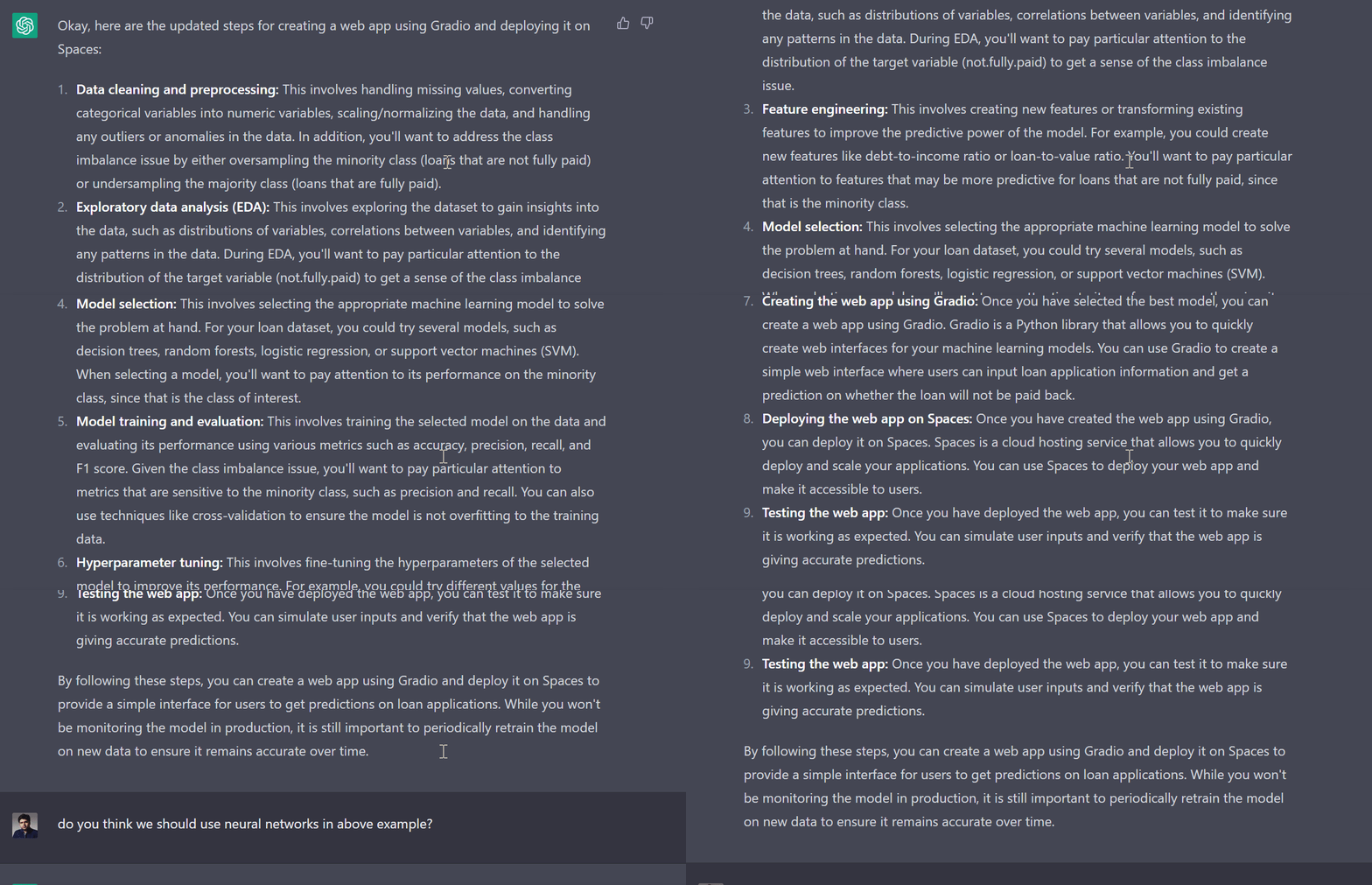
Using ChatGPT For Data Science Projects
Learn how to use ChatGPT in a real-life end-to-end data science project. We will use it for project planning, data analysis, data preprocessing, model selection, hyperparameter tuning, developing a web app, and deploying it.
,
Long-term Memory
- OpenAI Gives ChatGPT a Memory | Lauren Goode - Wired ... The company is starting to roll out long-term memory in ChatGPT—a function that maintains a memory of who you are, how you work, and what you like to chat about. Called simply Memory, it’s an AI personalization feature that turbocharges the “custom instructions” tool. Now, ChatGPT’s memory persists across multiple chats. The service will also remember personal details about a ChatGPT user even if they don’t make a custom instruction or tell the chatbot directly to remember something; it just picks up and stores details as conversations roll on.
ChatGPT Retrieval Plugin
The ChatGPT Retrieval Plugin is a historical open-source retrieval backend for searching personal or organizational documents using natural-language queries. It divides documents into chunks, represents them with embeddings, and retrieves relevant material from a supported data store. This is a retrieval component, not the same capability as personal memory or an always-on chief of staff, and the original ChatGPT plugins interface is deprecated.
- ChatGPT Retrieval Plugin | OpenAI Repository and implementation documentation for the historical retrieval backend.